

Chitchatbot allows you to easily set delivery costs based on location—such as by state, city, or address—within just a few minutes.
Here’s how to do it:
📋 Step 1: Prepare Your Spreadsheet
Create a Google Sheet or Microsoft Excel document to enter your delivery cost data.
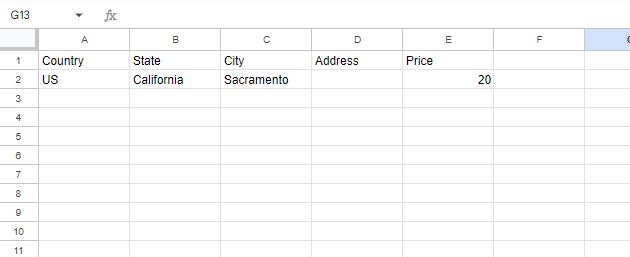
✅ Use the ISO Alpha-2 country code in the Country column.
For example:
- US (not “United States”)
- FR (not “France”)
✅ For State, City, and Address columns, enter the location details you want to charge differently.
- If you want different costs by state, leave City and Address blank.
- If you want different costs by city, leave Address blank.
✅ In the Price column, enter the delivery charge as a number only—no currency symbols or spaces.
For example: use 1000.5 instead of “1 000.5 USD”.
💾 Step 2: Export as CSV
After you finish entering your data, export the document as a CSV file.
⚙️ Step 3: Upload to Chitchatbot
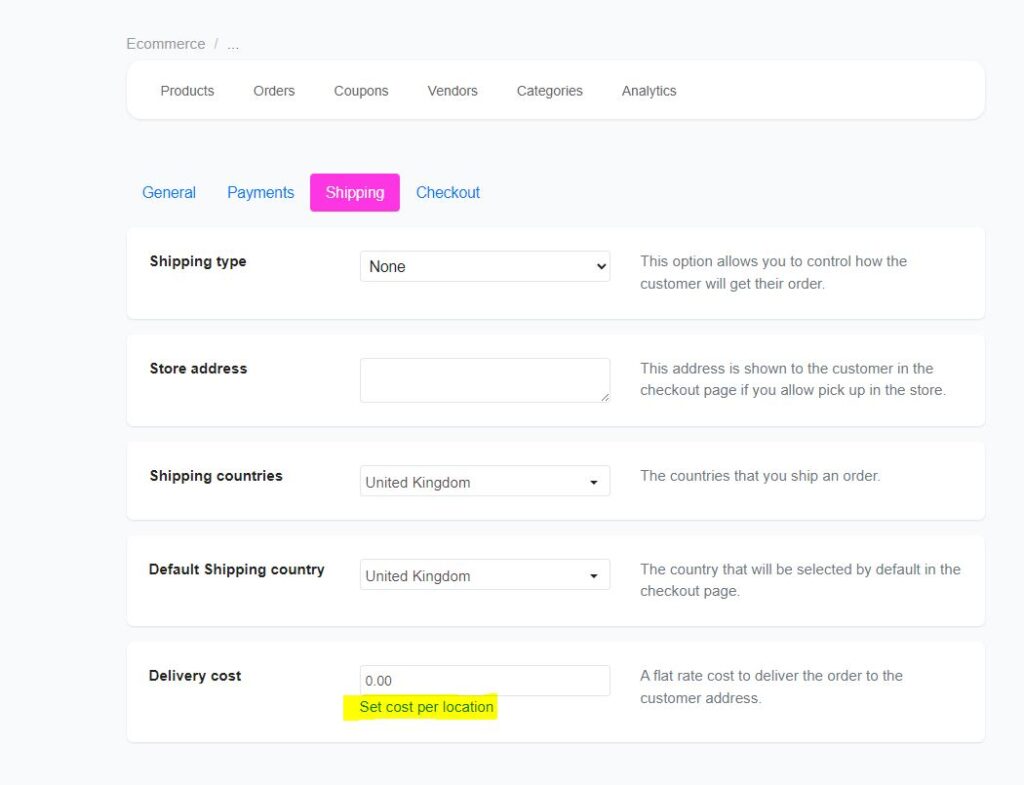
1️⃣ Go to eCommerce > Settings > Shipping
2️⃣ Click on “Delivery Cost”
3️⃣ Click “Set cost per location”
4️⃣ Upload your CSV file
Note: Each time you upload a new file, the previous pricing will be replaced. To revert to a flat rate delivery cost, upload a blank file.


