An AI agent helps your business respond instantly to customers using your own data and knowledge base. This guide walks through setting up an AI agent in ChitChatBot.ai and connecting it to your business information.
Step 1: Connect to an AI Provider
ChitChatBot.ai supports multiple AI models, including OpenAI (ChatGPT), Google Gemini, Claude, and xAI.
- In the left-hand menu, go to AI Center. You’ll see a list of all available AI providers.
- If you already added an API key, your connected AI agents will appear here.
- To add a new provider, go to Settings → Integrations, and enter your API key.
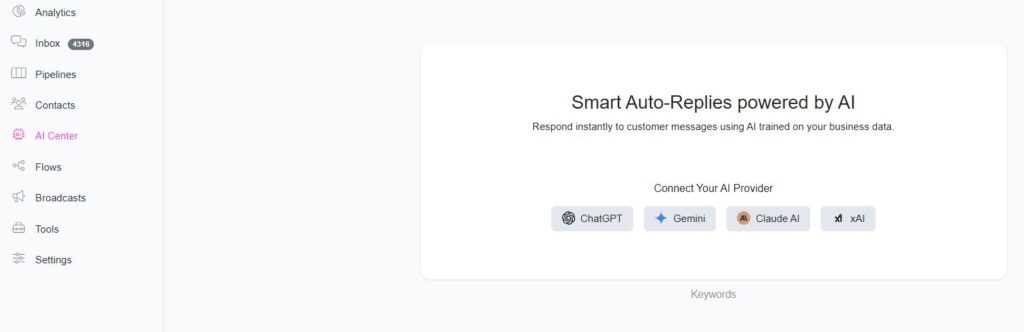
For this guide, we’ll use OpenAI (ChatGPT).
- Click ChatGPT and enter your OpenAI API key.
- Once connected, a default AI agent is automatically created.
Step 2: Add Your Business Information
For your AI agent to respond accurately, you’ll need to provide it with your business data. ChitChatBot.ai gives you two ways to do this.
Option 1: Add Information to the System Message (Prompt)
This is where you describe your business and set the tone for your AI assistant.
Example:
“You are a loyal AI assistant for ChitChatBot.ai — the leading no-code platform for conversational design. ChitChatBot helps businesses automate customer support, sales, and marketing on Messenger, Instagram, WhatsApp, Telegram, and Webchat. Only answer questions related to our platform. Keep responses short, highlight our benefits, and always reply politely and supportively.”
This ensures your agent always stays on-brand and provides relevant answers.
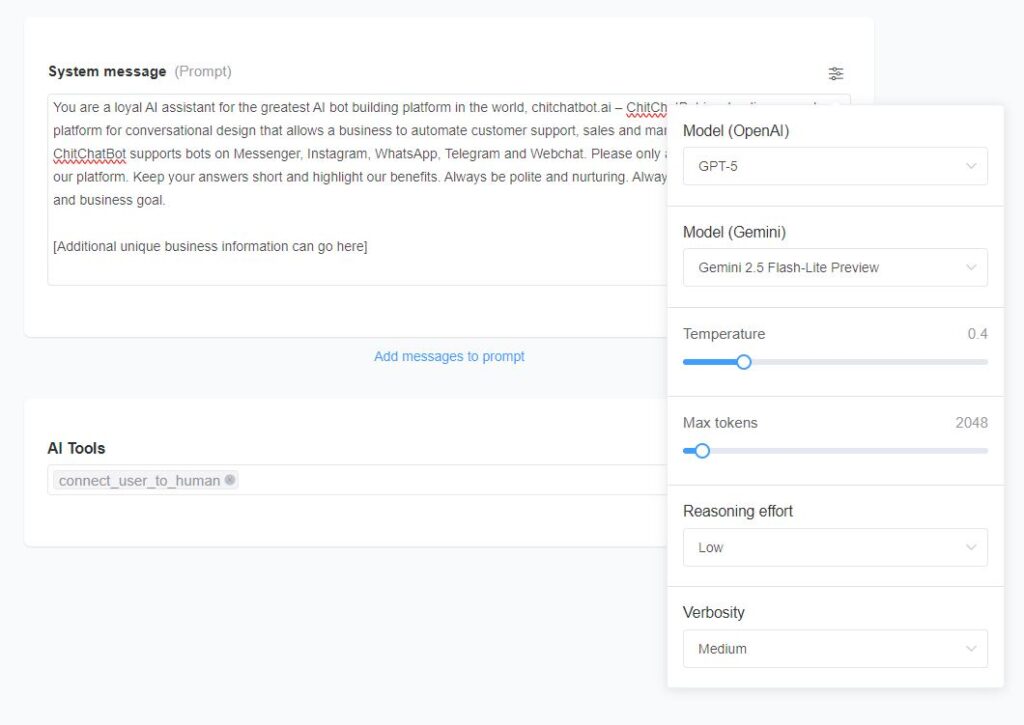
Option 2: Upload Documents
You can also upload business documents so the AI agent can generate responses based on them. Supported file types include PDF, CSV, DOCX, DOC, JSON, PPTX, TXT and more.
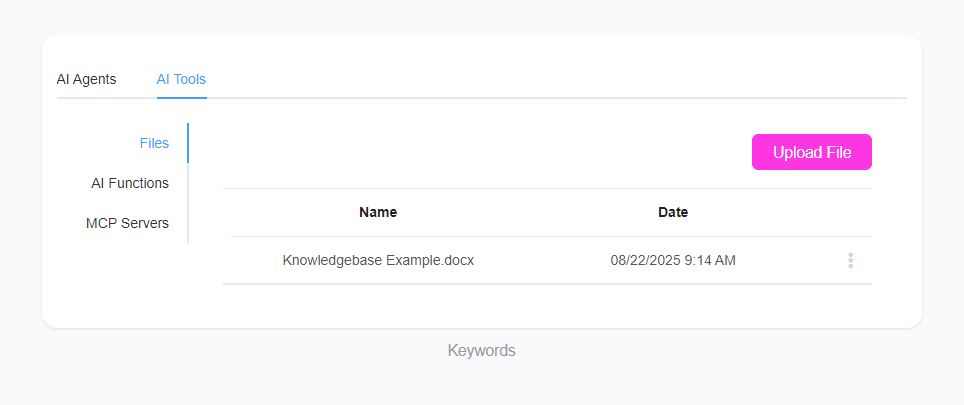
To upload documents:
- Go to AI Center → AI Tools → AI Files.
- Upload your file(s).
- Edit your AI agent and link the uploaded file under the AI Tools section. Once the file is created/uploaded, link it to a specific agent.
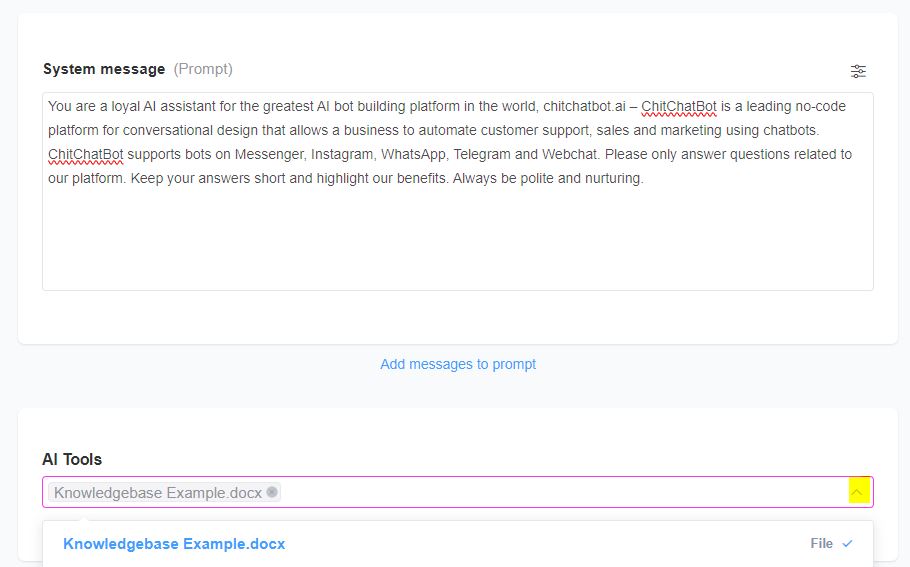
Next Steps
That’s it. 🎉 Your AI agent is now set up with your data. It can respond to customers instantly with accurate, on-brand answers.