Voice automation empowers your business to deliver instant, hands-free customer support through intelligent voice bots. By integrating with Twilio, ChitChatBot makes it easy to build, deploy, and manage powerful conversational experiences for voice channels.
With voice bots, you can automate call center tasks, manage inbound calls, provide 24/7 support, and even transfer live calls to agents—all without manual intervention.
🚀 What You Can Do with Voice Bots
-
Conversational IVR (Interactive Voice Response)
-
Virtual Agents for automated inquiries
-
Outbound Calling for reminders, follow-ups, or campaigns
-
Agent Assist with call routing and escalation
-
Hands-Free Automation that saves support costs and response time
🔧 Step-by-Step Setup
1. Create Your Twilio Account
If you don’t already have a Twilio account, sign up for free at twilio.com.
2. Buy or Port a Phone Number
-
Log into your Twilio Console.
-
Purchase a phone number that supports voice.
-
To use an existing phone number, you’ll need to port it into Twilio (contact Twilio support for assistance).
📌 Ensure the number supports voice functionality—not just SMS.
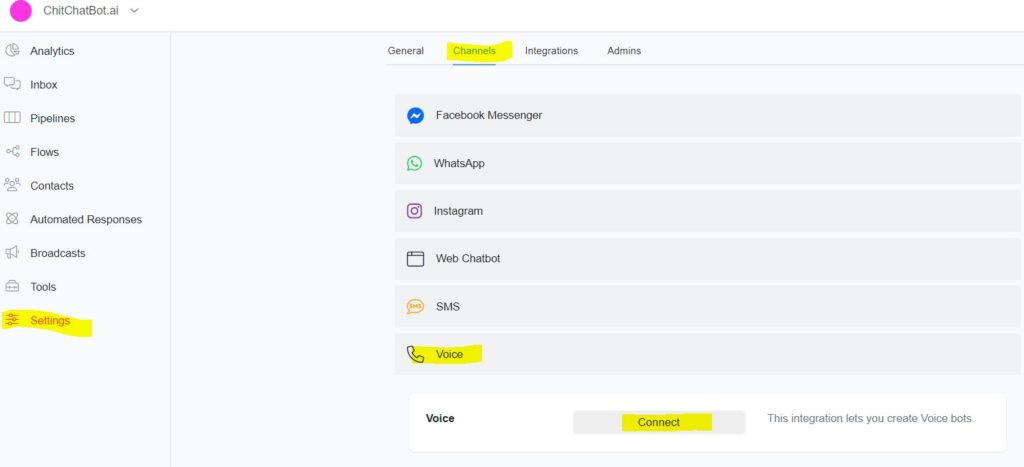
3. Connect Your Twilio Number to ChitChatBot
-
Go to Settings > Channels > Voice in your ChitChatBot dashboard.
-
Click Connect.
-
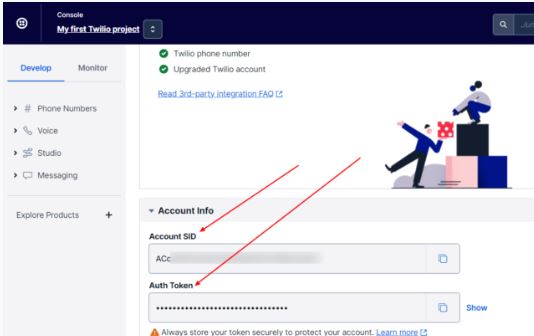
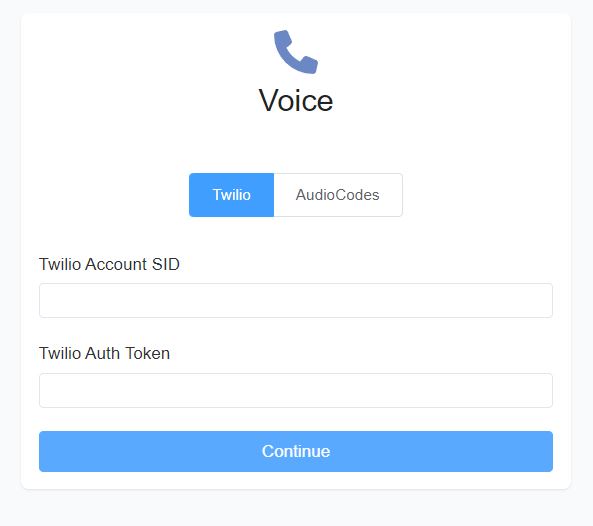
Enter your Twilio Account SID and Auth Token from your Twilio Console.
4. Set Up Your Welcome Message
The welcome message is the first voice prompt users hear when they call your number.
-
Navigate to Settings > Channels > Voice.
-
Set your Welcome Message to explain how the bot works or prompt a user action.
⚠️ If you don’t set a welcome message, your bot won’t speak until the user says something first.
🧠 How Voice Flows Work
Voice bots work similarly to text flows, with a few key differences:
✨ Voice-Specific Actions
✅ Hang Up a Call
-
Use the action: Actions > Voice > Hang Up
-
This will end the call immediately.
🔀 Transfer a Call
-
Use the action: Actions > Voice > Transfer Call
-
Enter the destination phone number to forward the call to a live agent or another line.
✅ Best Practices
-
Keep voice responses short and clear—avoid long messages.
-
Use buttons with DTMF values (e.g., “Press 1 for Support, 2 for Sales”) to improve usability.
-
Clearly communicate what users should say or press in your welcome and follow-up prompts.
-
Test your voice flows frequently for tone, clarity, and natural pacing.
💡 Tip:
If your voice flows use custom logic, consider combining them with conditions, custom fields, and tags to segment users or track behaviors over voice calls.