Chitchatbot’s Webshop lets your customers easily place orders online—no matter where they interact with your business. It works across all channels: Messenger, SMS, WhatsApp, Telegram, and more!
🔧 Setting Up Your Webshop
1️⃣ Go to E-commerce in your Chitchatbot dashboard and add your products.2️⃣ Use the {{shop_link}} system field to share your webshop:
-
For channels that support buttons (Messenger, Telegram, etc.):Add a button to your flow and use {{shop_link}} as the button URL.
-
For channels that don’t support buttons (SMS, WhatsApp, etc.):Include {{shop_link}} directly in your text block, like in the example below.
📈 Display Products in Your Flows
Use the Flow Builder to showcase your products:
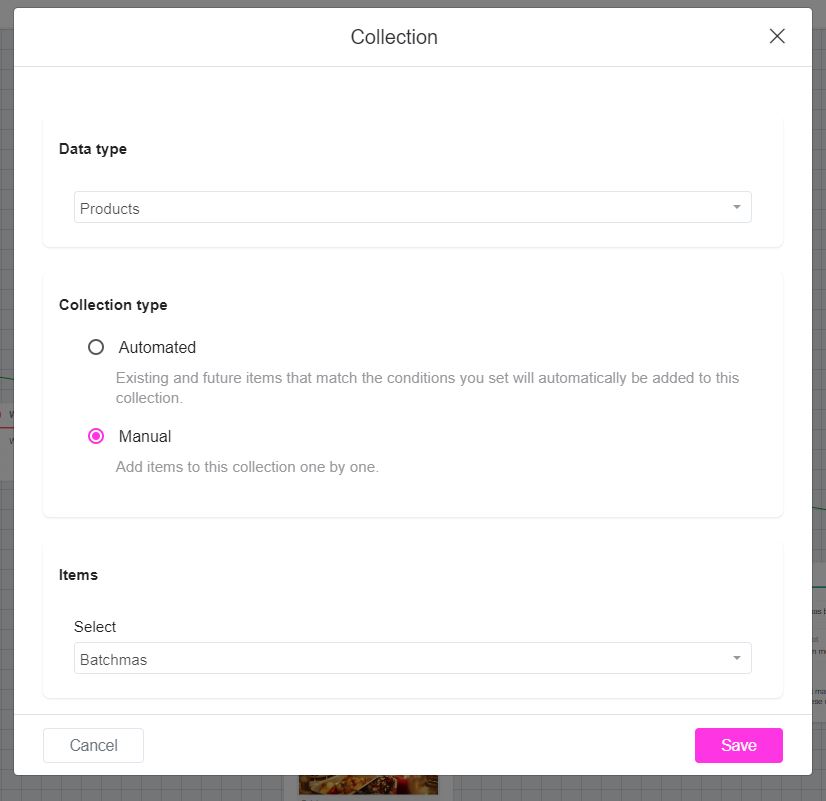
1️⃣ Click + Content2️⃣ Click Collection3️⃣ Select the data type (e.g., Products)4️⃣ Choose the Collection type:
-
Automated: Use vendor or category data
-
Manual: Pick specific products manually5️⃣ Click Save to add the collection to your flow.
🛒 Customize Product Views
Chitchatbot lets you choose how products are displayed in your webshop.Go to E-commerce > Settings to customize product views and layouts.
🗂️ Load the Webshop for a Specific Category
To share a webshop link that shows only a specific product category, use this format:
{{shop_link}}&t=CATEGORY_ID
👉 How to find the category ID:
-
Go to your category list
-
Click the 3 dots next to the category name
-
Select “Get ID”
**Example:**If your CATEGORY ID is 2000, your webshop link will be:
{{shop_link}}&t=2000
With these steps, your webshop will be up and running—ready for customers to explore and place orders seamlessly on any channel!