Importing contacts into app.chitchatbot.ai is a simple yet powerful way to grow your audience and start automating conversations across channels like WhatsApp, SMS, and more.
Whether you’re switching from another chatbot platform or uploading a list of phone numbers, this guide will walk you through the process step-by-step.
🔄 Where to Start
-
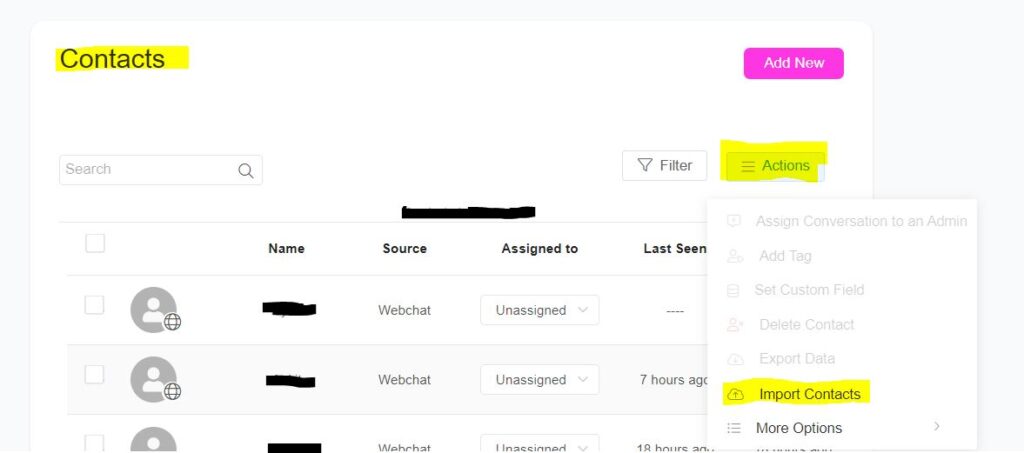
Navigate to Contacts from the main menu.
-
Click the Actions button, then select Import Contacts.
🧠 Supported Contact Sources
✅ Import from Manychat
-
Choose Manychat as your source.
-
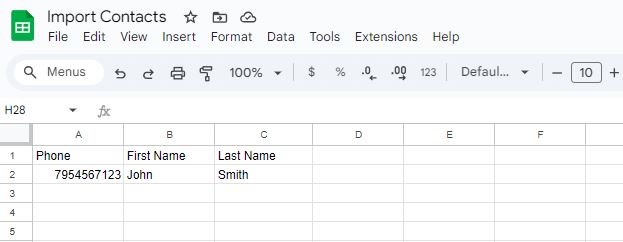
Upload your contact file in
.csvor.xlsxformat. -
The system will map the data and import contacts with their attributes.
✅ Import from Other Chatbot Platforms
-
Select Other Messenger Bot Platform as the source.
-
Upload a list of PSIDs (Page Scoped User IDs).
-
Optionally, assign tags or custom fields during import.
💡 Tip: Make sure your file includes valid and unique PSIDs for successful import.
✅ Import WhatsApp or SMS Contacts
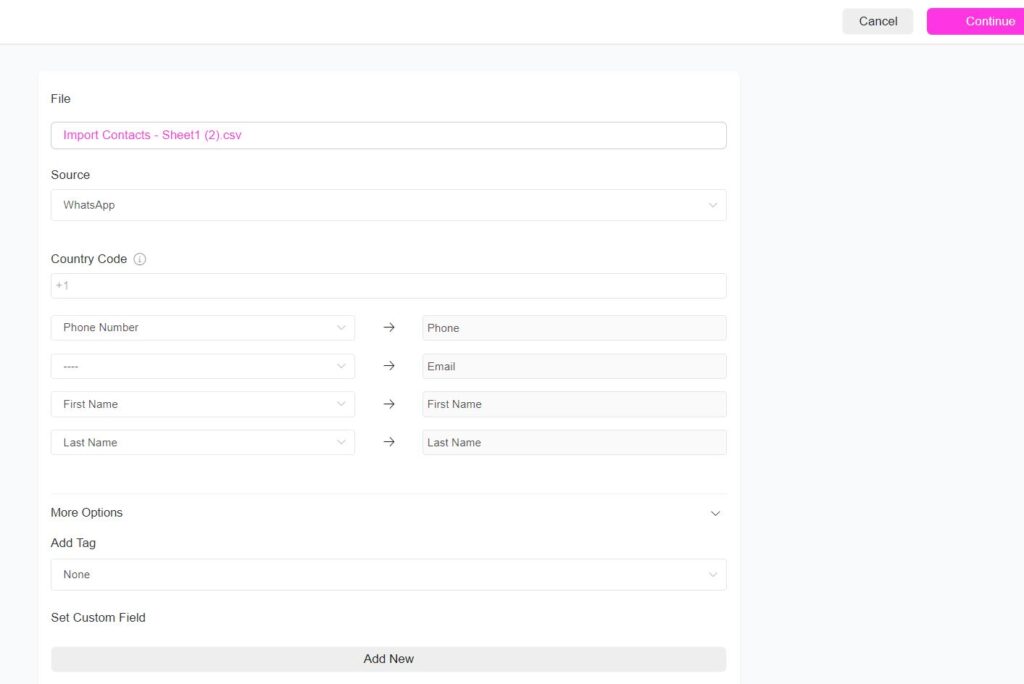
- Set the source as:
WhatsApp for WhatsApp contacts.
-
Phone for SMS contacts.
-
Specify the Country Code (e.g., +1 for the US).
-
Upload your
.csvor.xlsxfile with contact numbers. -
Use the More Options section to:
Assign tags to contacts.
- Set a custom field value (e.g., lead source, campaign name, etc.).
⚠️ Reminder: Ensure your contacts have opted in to receive messages via the selected channel to stay compliant with messaging regulations.
📌 Best Practices
-
Use clean, well-formatted data.
-
Double-check phone numbers and identifiers for accuracy.
-
Always respect user consent and opt-in requirements, especially for SMS and WhatsApp.
-
If you are unable to select a source within the imports contacts dashboard your file maybe incorrectly formatter or you may not be connected to the relevant channel.