The AI Function lets you connect your AI integrations to automation processes and external tools. With it, your AI agent can:
-
Collect user data.
-
Trigger workflows.
-
Retrieve information from external systems.
-
Return results directly to the user.
Why Use AI Functions?
Normally, AI can’t access real-time or external data. With AI Functions, you can fill that gap:
-
Example 1: Real-time dataUser: “What’s the weather like in New York?”→ AI Function triggers a Weather API → AI provides the answer.
-
Example 2: Lead qualificationIf you’re a real estate agent, AI Functions can automatically collect details from prospects (e.g., budget, location, property type) before handing them over to you.
-
Example 3: Human handoffChitchatbot.ai includes a built-in AI Function (
connect_user_to_human) that instantly transfers a conversation to a live agent. This is active by default for all accounts.
How to Create an AI Function
-
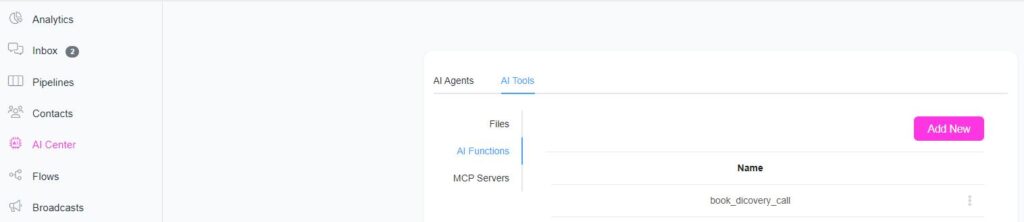
Go to AI Center → AI Tools → AI Functions.
-
Click Add to create a new function.
-
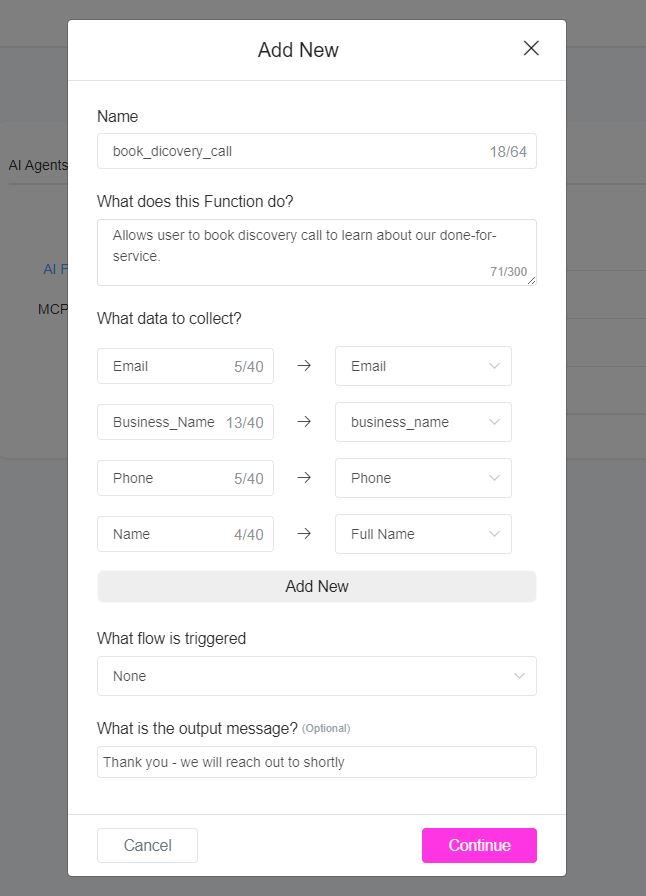
Fill in the following details:
Name
-
Use clear, descriptive names (at least 2 words).
-
Example: Use
get_current_weatherinstead of justweather.
What does this trigger do?
-
Describe the function starting with “Allows the user to…”
-
Example: “Allows the user to book an appointment.”
What data to collect?
-
List the exact data fields you want.
-
Use meaningful names (
email,city,date) instead of random strings. -
Example: For an appointment, collect
date,email, andreason.
What flow is triggered? (Optional)
-
If needed, specify a flow to process the collected data.
-
Example: Trigger an external request to a Weather API.
What is the output message?
-
Define the result the user should see.
-
Example: “Your booking was confirmed.”
-
Important: AI will rewrite and send this message to the user.
✅ Best practice: Store the message in a custom text field and use that field as the output.
- ❌ Avoid sending it directly from the flow builder.
Example AI Functions
1. book_appointment
-
Does: Allows the user to book an appointment.
-
Data:
date,email,reason -
Output: “You have successfully booked an appointment.”
2. connect_user_to_human
-
Does: Allows the user to speak to a human agent.
-
Flow: Triggers an Inbox Action that transfers the chat to a human.
-
Output: “You are now connected to a human agent. We will get back to you soon.”
3. get_current_weather
-
Does: Allows the user to check current weather.
-
Data:
city -
Flow: Connects to a Weather API.
-
Output:
{{data_from_api}}
4. join_email_list
-
Does: Allows the user to subscribe to an email list.
-
Data:
email -
Output: “Success”
5. request_shipping_quote
-
Does: Allows the user to request a shipping quote.
-
Data:
origin_address,destination_address,dimensions,weight -
Flow: Calculates a shipping quote.
-
Output:
{{quote}}
Enabling/Using AI Functions
After creating a function:
-
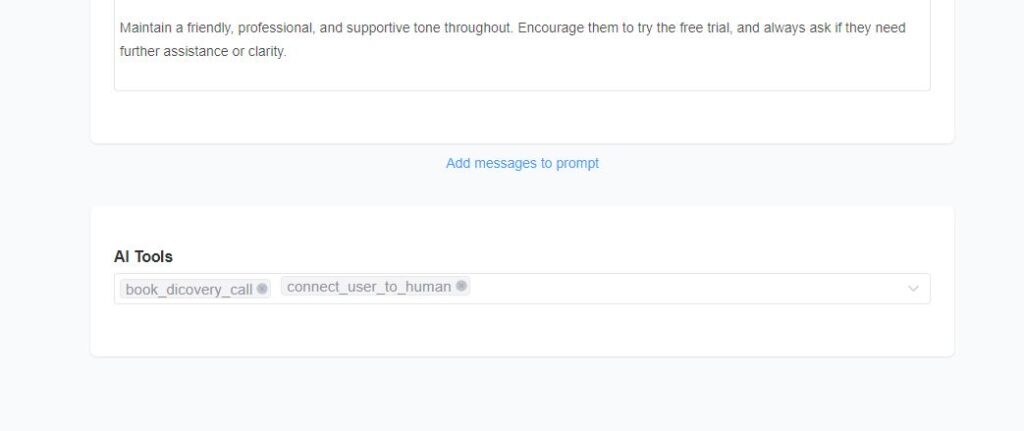
Edit your AI Agent or AI Action.
-
Enable the function so it can be called during conversations. Agent > AI Tools > Select the function you just created to link it to that agent.
Important Notes
-
Your prompt can strongly influence how an AI function behaves.
-
AI may try to fill in missing details automatically if the user doesn’t provide them. Example: For a restaurant booking, include in your prompt:
“It is crucial to ask the user for the date and number of guests when making a reservation.”
This ensures AI collects the right data before triggering the function.