
Keeping your contact list up to date is essential for successful chatbot campaigns and efficient communication. Whether you’re removing outdated contacts or cleaning up inactive users, app.chitchatbot.ai makes it straightforward to delete contacts from your account. Follow the steps below to ensure you manage your contacts safely and effectively.
Deleting a Contact: Step-by-Step
⚠️ Important Note: Once you delete a contact in app.chitchatbot.ai, it cannot be recovered. Consider archiving the contact.
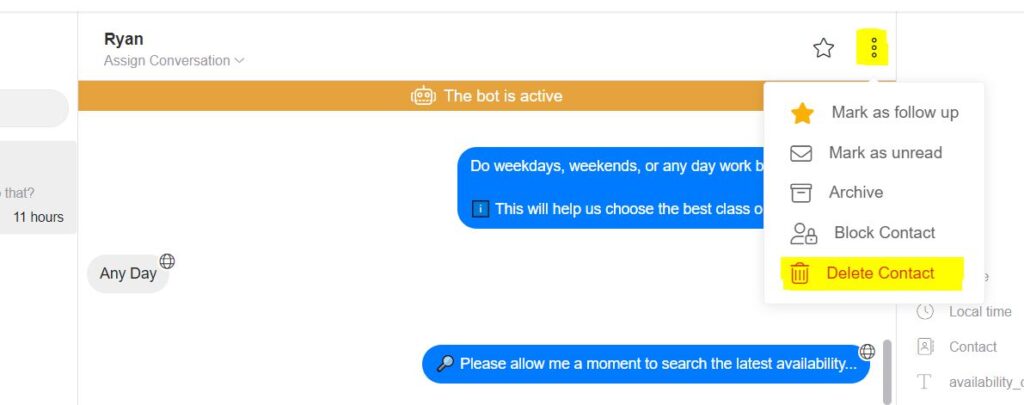
Option 1: Delete a Contact in the Flow Builder
If you want to automate the deletion process within a chatbot flow:
- Open the Flow Builder.
- Select an Action block.
- Choose the Delete Contact action to automatically remove a contact when that part of the flow is triggered.
Option 2: Delete a Contact from the Contacts Section
For manual deletion of individual or multiple contacts:
- Navigate to the Contacts section.
- Select the contact(s) you want to delete by checking the box next to their name(s).
- Click on the Menu icon.
- Select Delete to permanently remove the selected contact(s).
Expert Tips
💡 Backup Your Data
Before deleting any contacts, consider exporting your contact list as a backup. This way, you can restore important information if needed.
💡 Use Tags and Filters
Organise your contacts with tags like #Inactive or #ToDelete. This helps prevent mistakes and keeps your workflow tidy.
Common Mistakes to Avoid
⚠️ Accidental Deletion
Always double-check the contact details before confirming deletion. Deleted contacts cannot be restored.
⚠️ Ignoring Automation Options
If you have a lot of contacts to remove, consider using the Delete Contact action in the Flow Builder to automate the process.


