

The Messenger Composer in app.chitchatbot.ai is the text input box users see during a Messenger conversation. Enabling or disabling this feature gives you more control over how users interact with your chatbot—whether you want free-form messages or a guided, button-only experience.
This guide walks you through how to toggle the composer on or off and when to use each option for optimal engagement.
🛠 How to Enable or Disable the Message Composer
Follow these steps to control the Messenger composer inside any flow:
- Log in to your account
Visit app.chitchatbot.ai and log in with your credentials. - Open the Flow Editor
Navigate to Menu > Flows, and open the flow where you want to manage the composer setting. - Add the Composer Action
- Click on the “Action” block within your flow.
- Go to Messenger > Enable Message Composer or Disable Message Composer, depending on your desired setting.
- Drag and place this action at the appropriate point in your flow where you want the change to take effect.
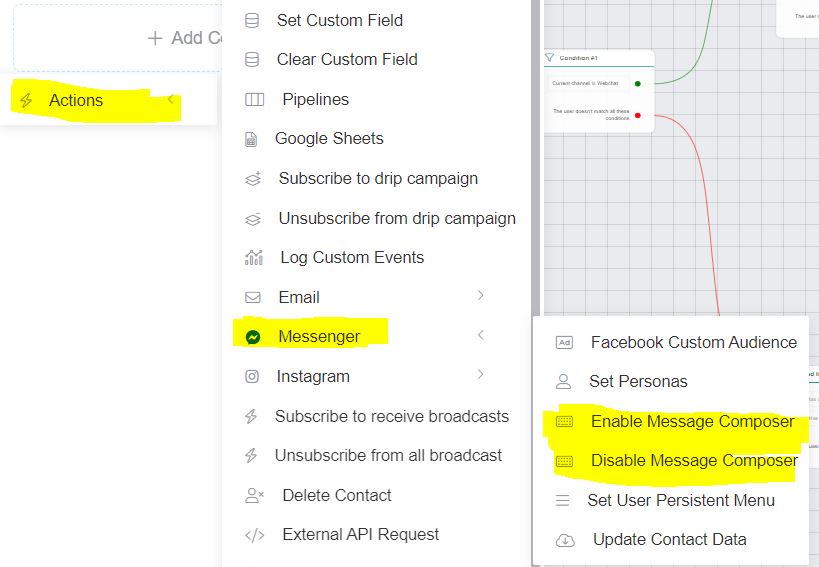
⚠️ Note: Changes to the Messenger composer may not reflect instantly due to platform behavior, so allow a few moments or refresh the conversation. With the rise of AI and manual typing we would recommend the message composer is only hidden in specific use cases.
💡 When to Use Each Option
✅ Enable the Message Composer
Enable this feature when you want users to type freely:
- Unstructured or Open Conversations: Allow users to ask questions, describe issues, or interact naturally.
- Live Support: Let users provide detailed information or describe complex problems in their own words.
- Collecting Open-Ended Feedback: Great for surveys or qualitative insights.
🚫 Disable the Message Composer
Disable the composer when you want to guide users or limit inputs:
- Structured Flows: For quizzes, surveys, or menu-based navigation, disabling free typing keeps users on track.
- Minimize Off-Topic Responses: Avoid distractions or unrelated messages during focused journeys.
- Reduce Misunderstandings: Helpful for bots with limited Natural Language Processing (NLP) capabilities.
🎯 Best Practices
- Combine Smartly: In longer flows, consider toggling the composer on and off at different stages to match the context.
- Communicate Clearly: If you disable the composer, explain why and guide the user with visible button options.
- Test Your Flow: Make sure the composer settings behave as expected across various devices and scenarios.
Controlling the Messenger composer is a small change that can make a big difference in how users interact with your bot. Use it strategically to improve clarity, streamline conversations, and create a better user experience.


