

Leverage AI to Understand and Act on Image Inputs Automatically
Claude Vision allows your chatbot to interpret and analyze images sent by users—unlocking powerful automation, smarter responses, and deeper insights directly from visual content.
This is perfect for use cases like:
- Document verification
- Product image recognition
- Issue reporting via photos
- Customer support using screenshots
🔗 Step 1: Connect Claude Integration
If you haven’t connected Claude yet:
- Log in to your Chitchatbot.ai account
- Go to Settings > Integrations > Claude
- Click Connect and enter your Claude API key
👉 Need help? Follow the full guide here:
🔗 How to Connect Claude to Chitchatbot →
🔁 Step 2: Create a Flow to Analyze Images
- Create a New Flow
Go to Flows > Create Flow - Add a ‘Get User Data’ Block
- Prompt users to upload or send an image
- Save the image in a custom field (e.g.,
user_image)
- Add the Claude Action
- Choose Claude > Analyze Image
- Input: Select the custom field (e.g.,
user_image) that contains the uploaded image - Output: Choose a custom field (e.g.,
vision_analysisor new_response) to store the result - Optional: Add user context or task instruction (e.g., “Describe what’s in this image”)
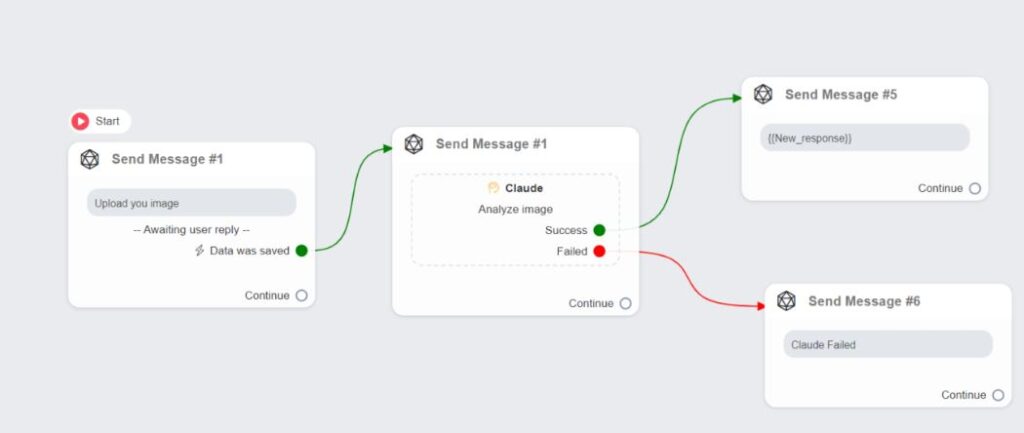
📲 Display or Use the Analysis
You can use the result ({{vision_analysis}}) in:
- A Text Block to show the interpretation to the user
- A Condition Block to trigger actions based on analysis content
- A Tag or CRM Field Update to store outcomes for future reference
💡 Advanced Use Case: Analyze Any Image Anytime
Claude Vision can analyze unsolicited or unexpected images sent by users—even outside structured flows. This works well when:
- A user sends an image in a default reply scenario
- Claude is set as your fallback AI to respond naturally
- You want automatic image analysis without direct user prompts
To enable this:
- Ensure Claude is connected and “Automate Responses” is ON
- Configure your default reply flow to route image inputs to the Claude Vision action


