Google Gemini enables your business to provide instant, intelligent customer support—24/7—while significantly reducing operational costs and dependency on human agents.
With the right setup, your chatbot powered by Gemini can answer business-specific questions, enhance customer satisfaction, and scale effortlessly.
🌟 Why Use Google Gemini?
- ✅ Real-Time AI Responses: Deliver instant answers around the clock.
- ✅ Cost-Effective: Reduce your need for large support teams.
- ✅ Trainable & Context-Aware: Gemini responds based on your business information and tone.
- ✅ Multichannel Support: Works across web, voice, and social channels.
🧠 Your chatbot’s intelligence depends on your business prompt.
Take time to craft a clear, detailed, and relevant prompt—this acts as the “brain” of your AI assistant.
🔗 Step 1: Connect Google Gemini to Chitchatbot.ai
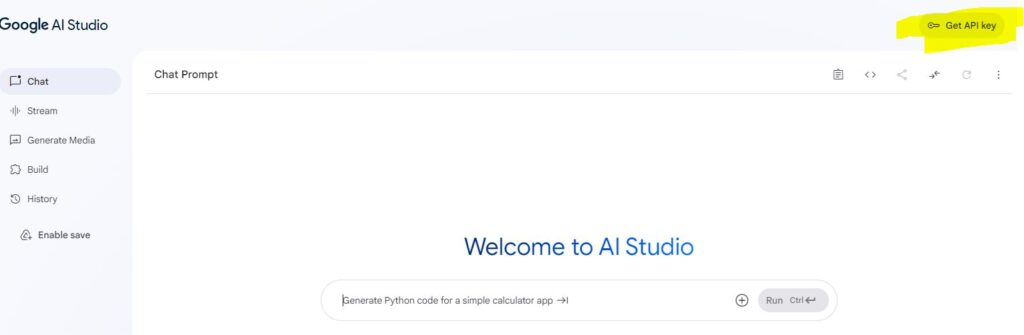
- Get Your Gemini API Key
Visit: https://aistudio.google.com/app/prompts/new_chat
Copy your API key. - Log into Chitchatbot.ai
Go to Settings > Integrations > Google Gemini - Click “Connect”
Paste your Gemini API key and complete the connection.
⚠️ You do not need to fill out the “Prompt” field in the integration settings for image generation or AI chat—this is handled dynamically inside flows.
🔁 Triggering a Flow Using AI
Use AI Triggers to route users to specific flows based on their message intent.
📘 Learn more: How to Trigger Flows with AI →
🧑💼 Automatically Transfer to a Human Agent
We’ve included a built-in AI trigger that listens for human handoff requests like:
“Talk to a person”
“Can I speak to a human?”
“I need real help”
When detected:
- Bot automation stops
- The conversation is routed to a live support agent
No setup required—this feature is active by default.
⚙️ AI Response Priority
When a user sends a message to your bot, Chitchatbot processes the response in this priority order:
- Basic Keyword Automation & Flows
- OpenAI (ChatGPT)
- Claude (Anthropic)
- Google Gemini
🔕 Disable Automatic Gemini Responses (Optional)
If you don’t want Gemini to automatically respond to every message:
- Go to Settings > Integrations > Google Gemini
- Toggle off Automate Responses
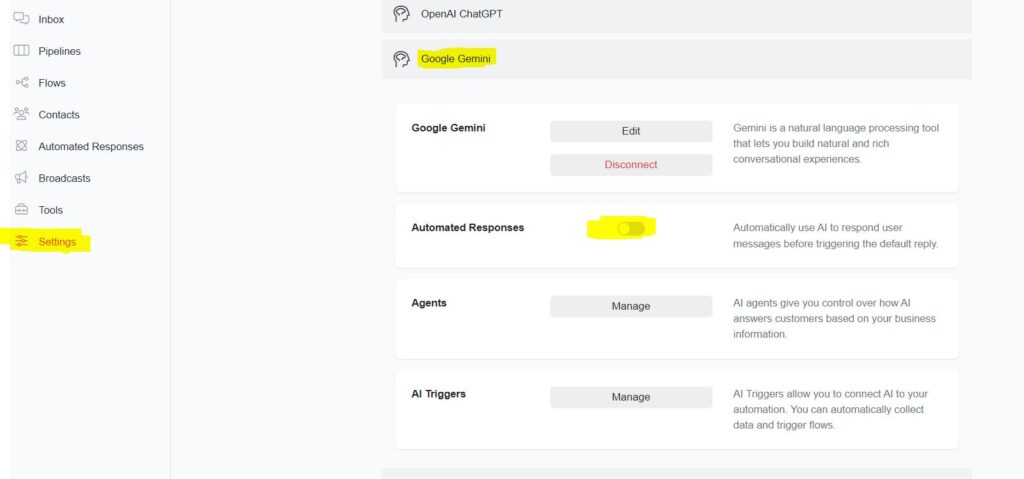
This allows you to use Gemini only within selected flows or actions. If you see your bot responding to messages you don’t want it to, this is the likely cause – it’s same for any AI model you are using.
With Google Gemini + Chitchatbot.ai, your customer service becomes faster, smarter, and more efficient—without the overhead.
Need help crafting your Gemini prompt or flows? Just ask!


