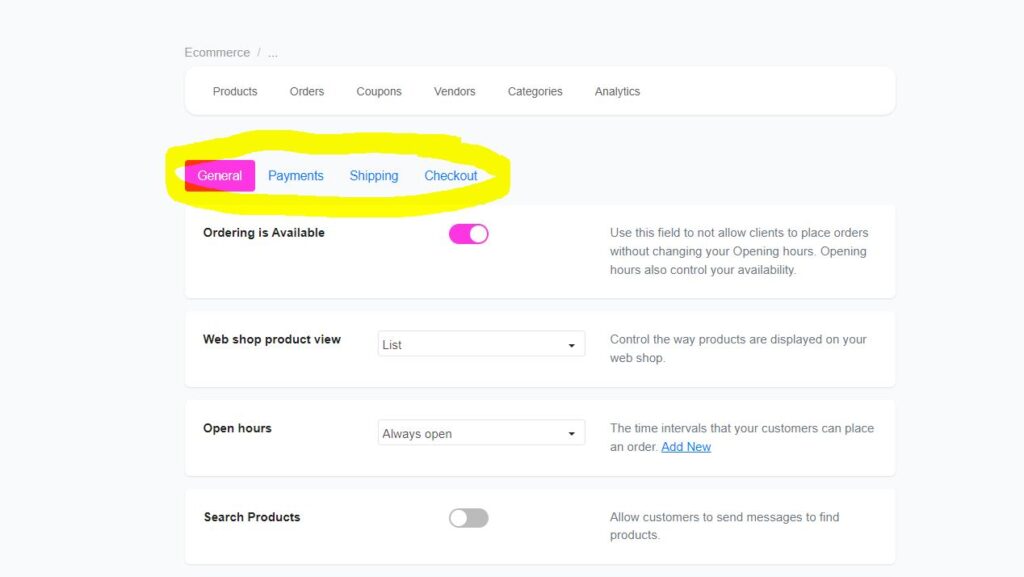
The eCommerce module in ChitChatbot.ai offers separate settings for configuring every aspect of your online store’s experience, including:
-
Payments
-
Shipping
-
Checkout
🛒 Checkout Settings
-
CheckoutDetermines where customers finalize their orders. For Shopify stores, this is fixed to Shopify’s default checkout. If you prefer customers to complete their orders outside Messenger (e.g., on your website or Amazon), do not use the ChitChatbot checkout page.
-
Minimum Order ValueSet the minimum amount a customer must spend to place an order (after discounts).
-
Maximum Vendors in CartSpecify how many different vendors can be in a single cart. Enter “-1” for no limit.
-
Require Buyer InformationEnable the following fields to make them mandatory during checkout:
Buyer’s Name
-
Email Address
-
Phone Number
-
Zip Code
🚚 Shipping Settings
- Shipping TypeChoose how orders are fulfilled:
Ship to Customer – Deliver to the customer’s provided address.
-
Pickup in Store – Let customers collect orders at your physical store location.
-
Both – Give customers the choice.
-
Store AddressDisplayed at checkout if you allow store pickup.
-
Shipping CountriesSelect which countries you ship to.
-
Default Shipping CountryBy default, this is set to “United States,” but you can change it to fit your business.
-
Delivery CostSet the delivery fee for orders:
Leave blank or enter “0” for free shipping.
-
If delivery costs vary by location, use the Set Cost per Location option for detailed control.
-
For more information, see: “How to Set Delivery Cost Based on Location?”
💳 Payment Settings
-
Stripe AccountConnect your Stripe account to receive payments.
-
Alternative Payment GatewaysNo Stripe? No problem—connect your PayPal account instead. PayPal is easier to connect.
-
Payment MethodsChoose the payment options available to your customers during checkout. These appear in the checkout flow in the order listed:
Card
-
Apple Pay
-
PayPal
-
Google Pay
-
Alipay
-
WeChat Pay
-
Cash on Delivery
-
CurrencySelect the currency for your store’s pricing and transactions.
-
Currency SymbolCustomize the symbol displayed with prices (default is “$”). If you want a space between the symbol and amount, add a space after the symbol.
⚙️ General Settings
-
Ordering AvailabilityControl whether customers can place orders based on your store’s opening hours.
-
Web Shop Product ViewChoose how products are displayed in your web shop: list, card, image, etc.
-
Open HoursSet the days and times your shop is open for orders. The default is “always open,” but you can create custom schedules.
-
Search ProductsLet customers search for products by sending messages in the chatbot.
-
Facebook PixelIntegrate Facebook Pixel to track and measure ad conversions. Events tracked include:
ADD_TO_CART
-
INITIATE_CHECKOUT
-
PURCHASE
-
VIEW_CONTENT
-
Buttons in ProductsControl which buttons appear for products in the bot (e.g., Add to Cart, Share, Save).
-
Allow Customers to Rate OrdersLet customers rate and review their orders. Reviews are visible only to bot admins.
-
Send Notifications When Cart Status ChangesCustomers get notifications whenever you update their order status (notifications for cancellations and order completions cannot be turned off).
📌 Summary
With ChitChatbot.ai’s eCommerce settings, you can fine-tune every aspect of your customers’ shopping experience—from how they pay and receive their orders to how they engage with your brand. Adjust these settings in your ChitChatbot Dashboard to make the most of your eCommerce chatbot!